Branding Settings
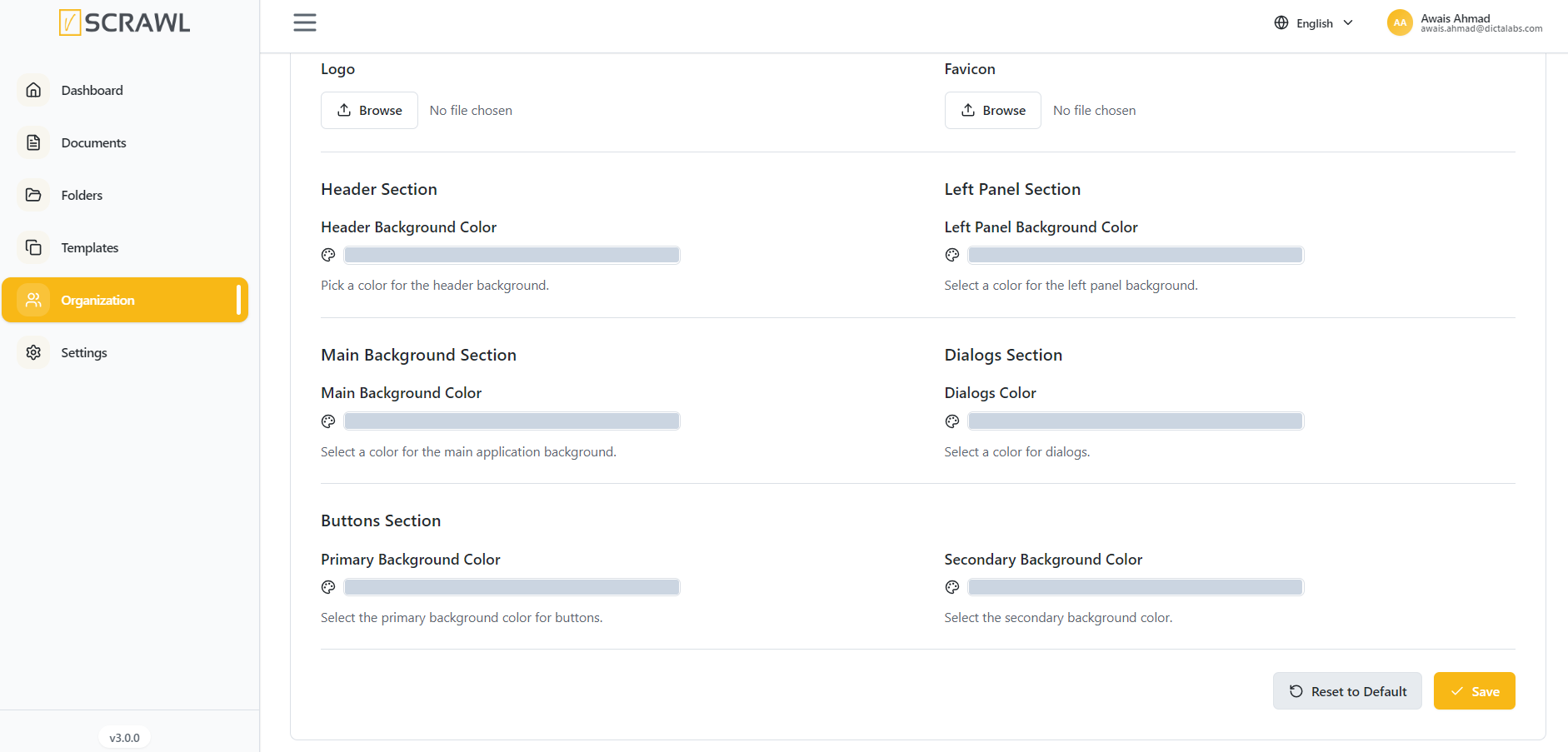
The Branding Settings section allows administrators to customize the appearance of the vScrawl platform to match their organization's branding. This includes logos, icons, and interface color settings.
Accessing Branding Settings
- Navigate to Organization.
- Select the Branding Settings tab.
Logo
Upload a custom organization logo that will be displayed throughout the platform.
- Click Browse under Logo.
- Select an image file.
- Save your changes.
Favicon
Upload a custom favicon to be displayed in browser tabs.
- Click Browse under Favicon.
- Select an icon file.
- Save your changes.
Color Customization
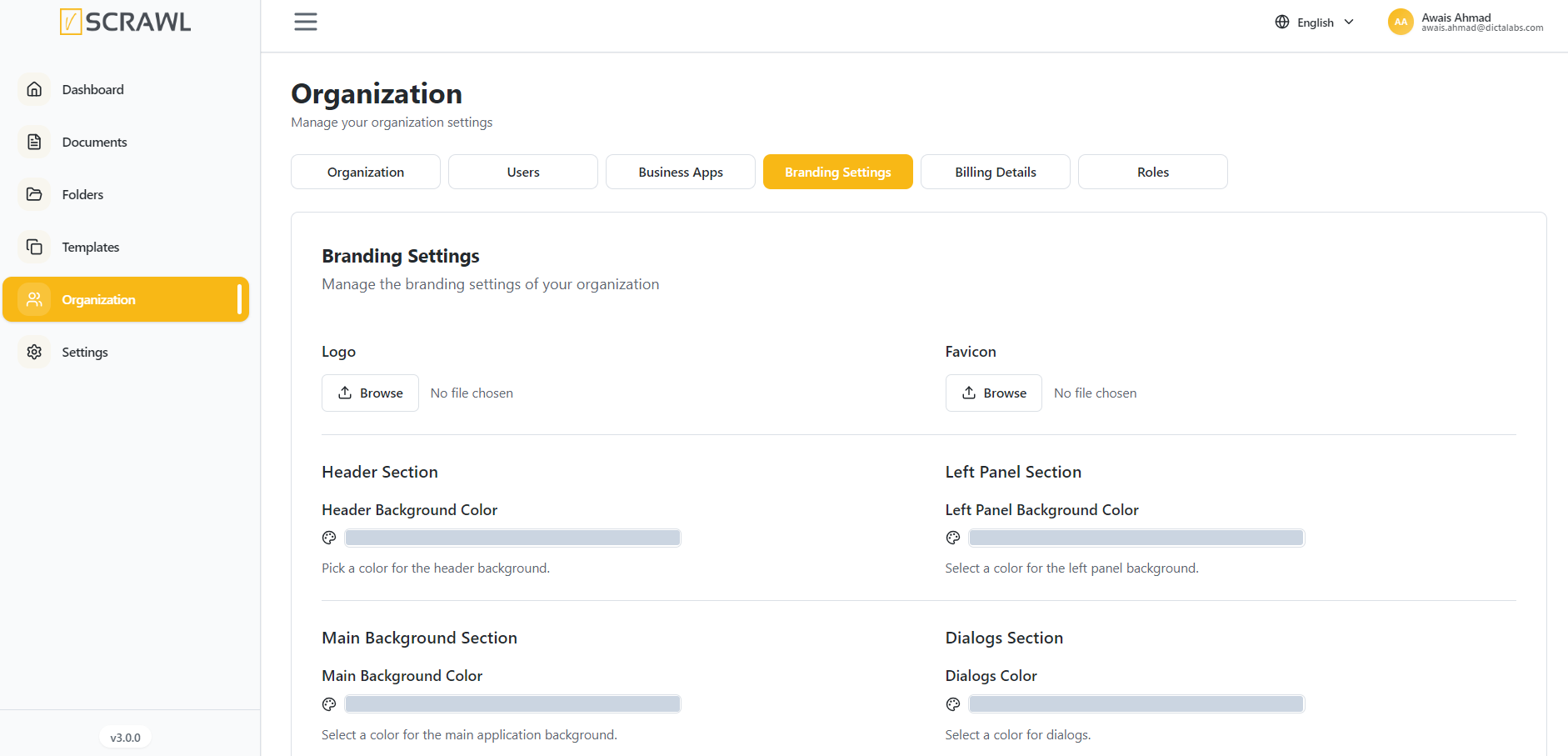
Administrators can customize the following interface elements:
Header Section
Configure the Header Background Color displayed across the top navigation area.
Left Panel Section
Configure the Left Panel Background Color used for the navigation menu.
Main Background Section
Configure the Main Background Color used throughout the application workspace.
Dialogs Section
Configure the color used for dialog boxes and modal windows.
Buttons Section
- Primary Background Color – Applied to primary action buttons such as Save, Submit, and Upload.
- Secondary Background Color – Applied to secondary actions such as Cancel and Back.
Saving Changes
After making the desired updates, click Save to apply the branding settings.
To restore the default appearance, click Reset to Default.