folder management
The Folders feature in vScrawl helps users organize and manage documents efficiently. By creating folders, users can group related documents together, making them easier to locate, review, and manage.
Folders provide a structured way to maintain documents and improve workflow organization, especially when working with multiple files.
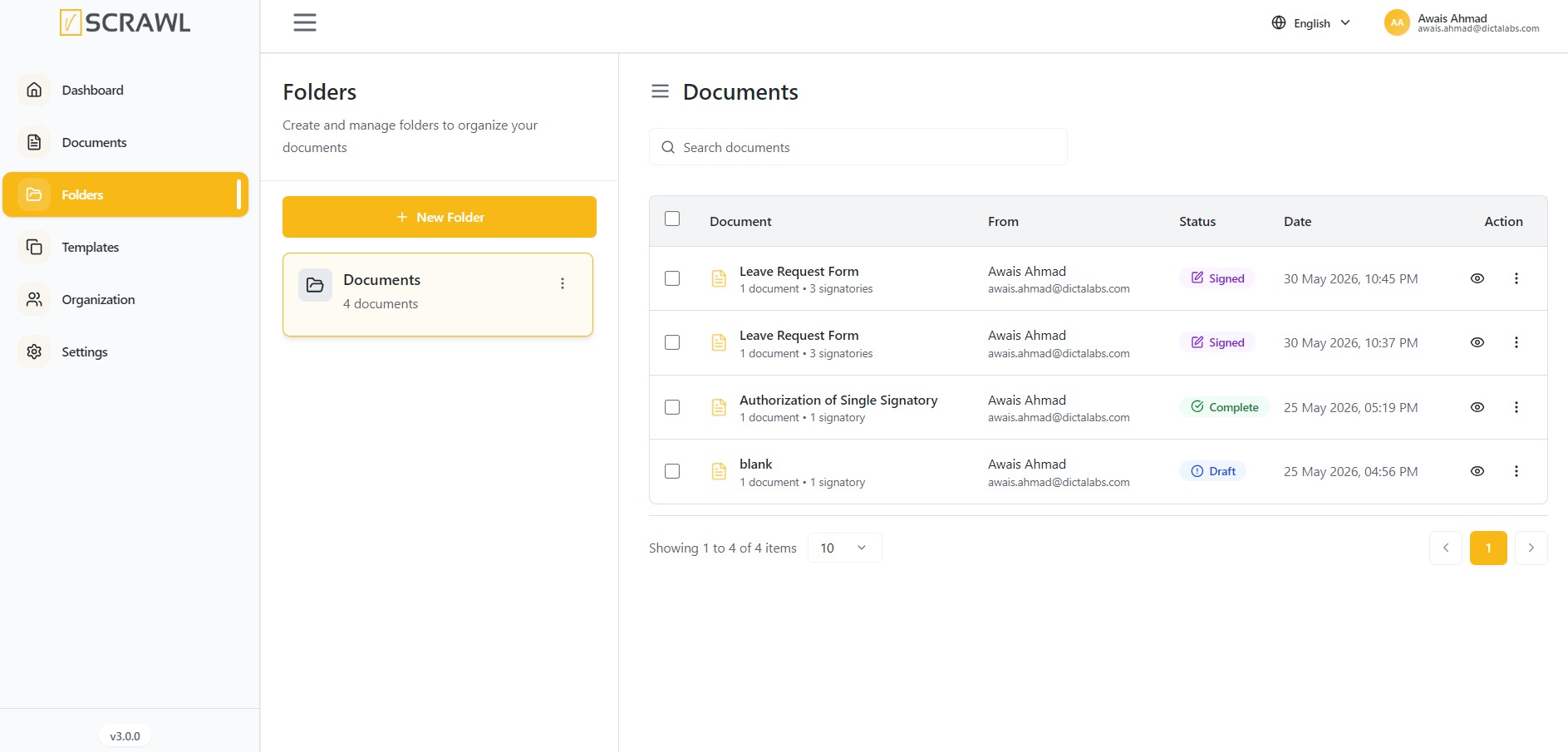
Accessing Folders
- Sign in to your vScrawl account.
- From the left navigation menu, click Folders.
- The Folders page will open, displaying all available folders and their associated documents.
Creating a New Folder
To create a new folder:
- Navigate to the Folders page.
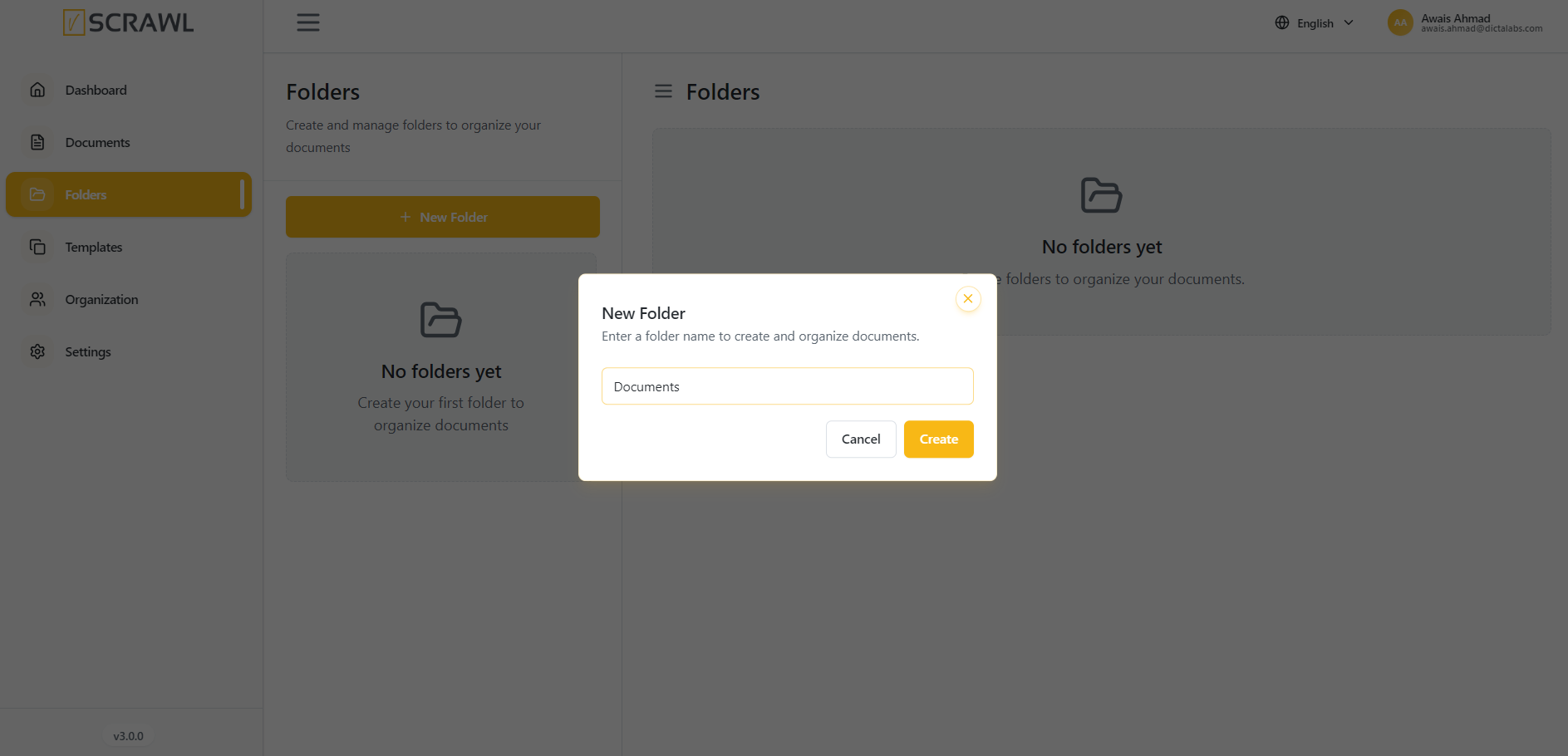
- Click the New Folder button.
- Enter a name for the folder.
- Confirm the creation.
The new folder will appear in the folder list and will be available for organizing documents.
Move Documents into a Folder
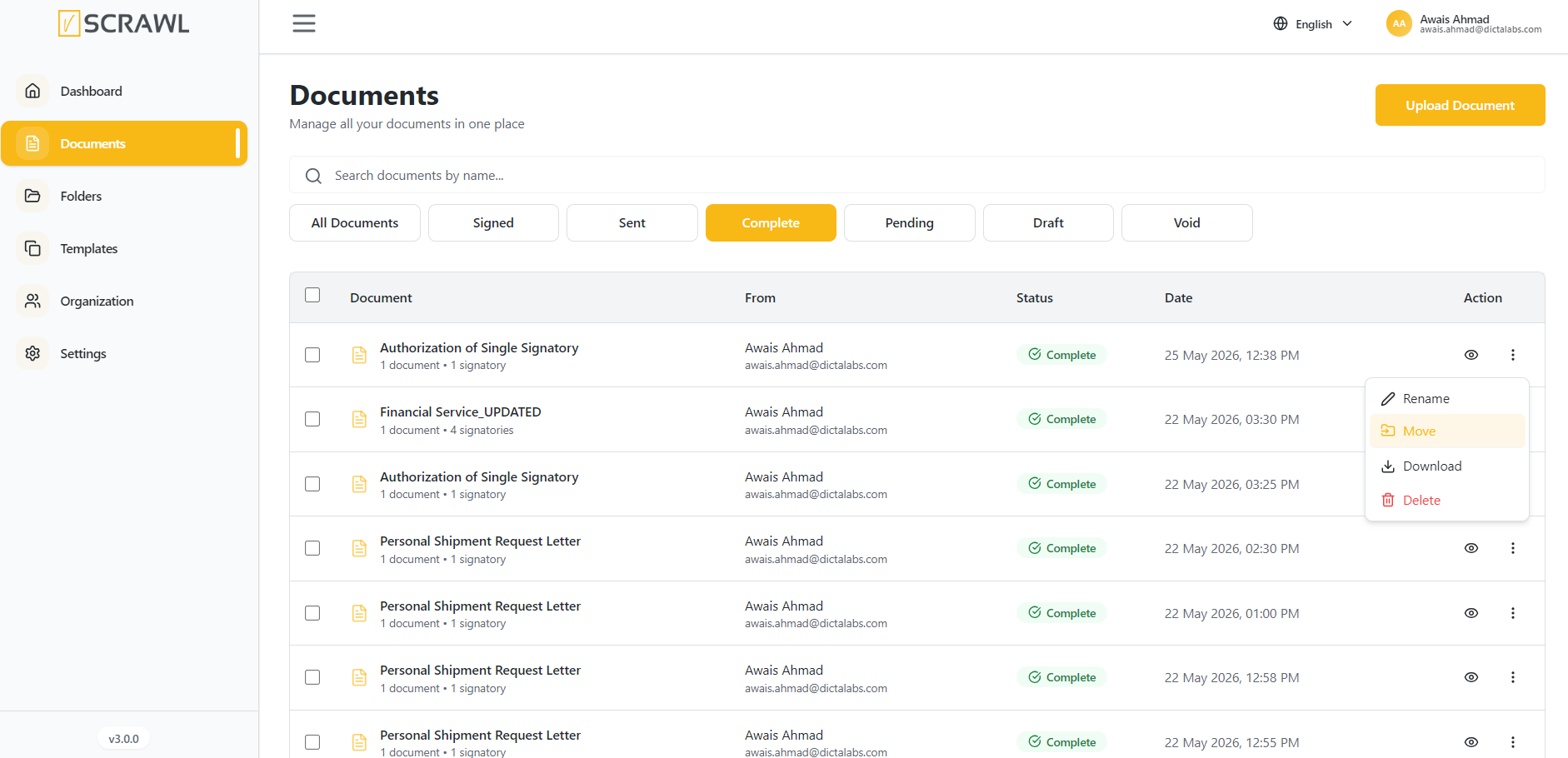
· Open All Documents (or any other document list).
· Click the three dots (⋮) next to the document.
· Select Move to Folder.
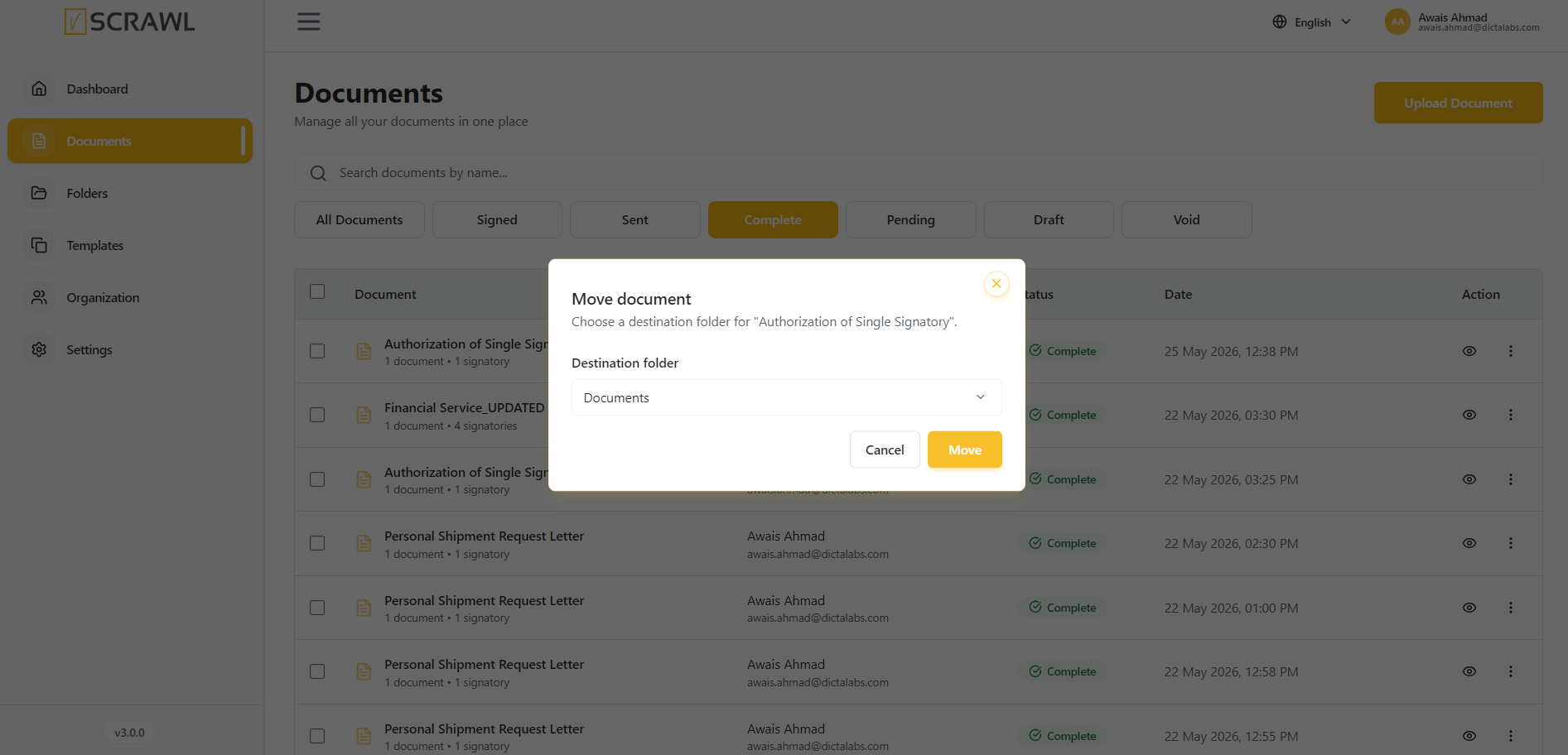
· Choose the folder where you want to move the document.
Viewing Folder Contents
When a folder is selected from the folder list:
- The folder details are displayed on the left panel.
- Documents contained within the selected folder are displayed on the right panel.
- Users can quickly review all documents stored in that folder.
Document information includes:
- Document Name
- Sender Information
- Status
- Date and Time
- Available Actions
Searching Documents Within Folders
The document panel includes a Search Documents field.
To search for a document:
- Click inside the search box.
- Enter a document name or keyword.
- Matching documents will be displayed automatically.
This feature helps users quickly locate specific documents within the selected folder.
Understanding Document Status
Documents may display different statuses, such as:
| Status | Description |
|---|---|
| Draft | The document is still being prepared and has not been sent for signing. |
| Signed | The signing process has been completed successfully. |
| Complete | All required actions and signatures have been finalized. |
Document Actions
Users can perform actions on documents directly from the folder view.
Available actions may include:
- View Document
- Review Details
- Manage Workflow
- Access Additional Options through the Actions menu
The available actions may vary depending on the document status and user permissions.